How to see who has paid in Google Forms?
"Managing 1000+ Form responses (like payment screenshots) is difficult"- Google Docs Editors Community
Once sign-ups pile up, checking payments in Google Forms means opening each payment screenshot and comparing it with your account. Nothing in the form marks the ones you've checked, so you lose your place and end up reminding people who already paid. With Neartail, you mark each sign-up paid once you've checked it, and paid and unpaid sit in separate columns on your Kanban board. You don't build your form again: you paste its link.
Let's start. Import your Google Form and follow the steps below.
1. Add payment to your form
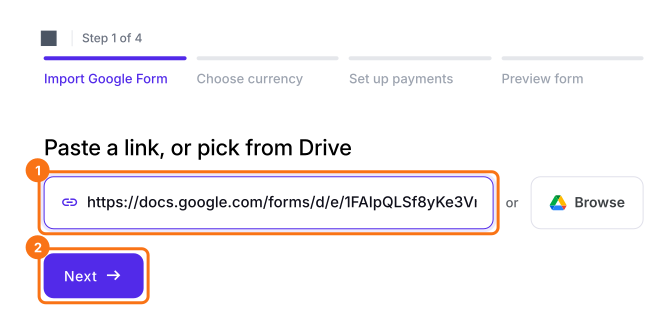
On the page that opens, paste your form's link or click Browse to pick it, then click Next. It makes a copy of your form, so publish the form in Google Forms first. Select your currency and click Next.
2. Turn on how people pay
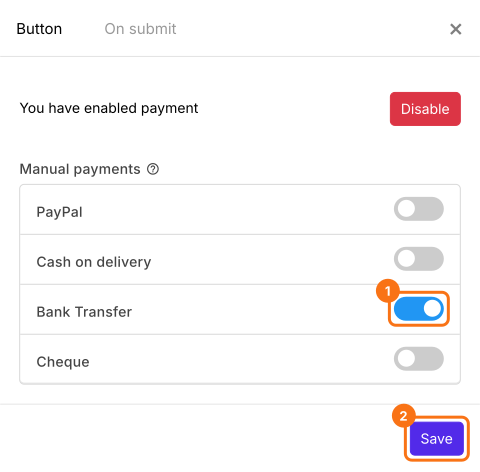
Click Set up payments. The Payments panel opens beside the form. Under Manual payments, turn on how you take money, such as Bank Transfer, enter your account details and click Save. Click Next. When it says "Your payment form is ready", click Preview your form. Your form opens in a new browser tab. On the import page, click Edit form under MANAGE. The editor opens on the Edit tab, in a new browser tab.
3. Open a sign-up to check
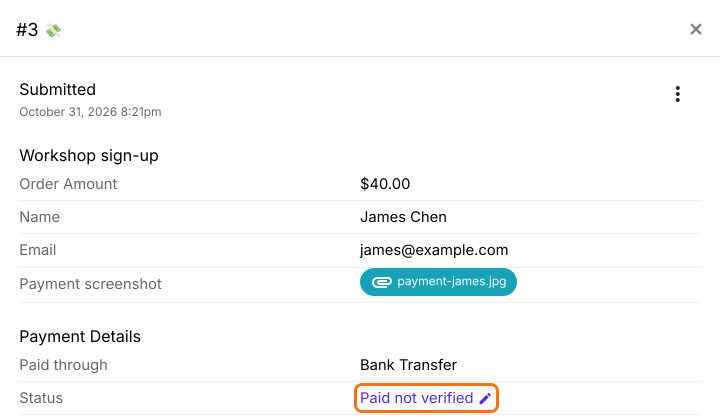
Share your form. Each person who submits it sees the amount and your account details and clicks Mark as Paid. Click ORDERS, then Kanban board, and click a sign-up with a 💸 on it. Check the payment against your account, then click the pencil next to Status.
4. Mark it paid
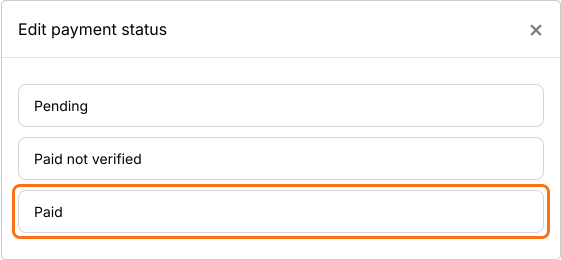
When the money is in your account, click Paid.
5. See who has paid
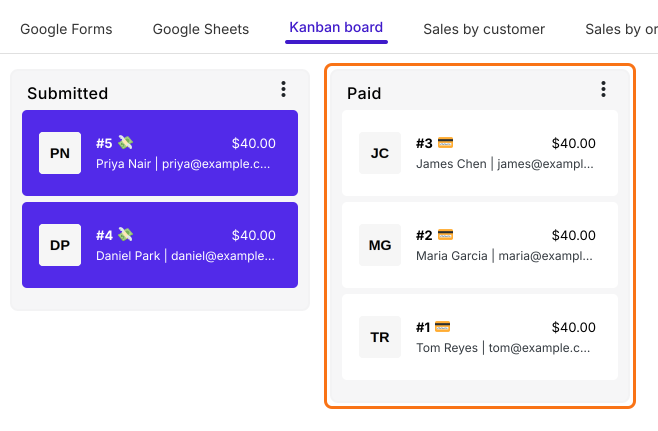
James moves to the Paid column, so you know you've checked him. Everyone left in Submitted still has a 💸, so that's who to check or remind.
Summary
If you check payment screenshots one at a time, nothing marks the ones you've done and you end up reminding people who already paid. With Neartail, you mark each sign-up paid after you've checked it, and paid and unpaid sit in separate columns on your board. Import your Google Form and complete the steps above.
Mark each response to your Google Form paid once you check it.
Import your Google Form and turn on how people pay. Once you check a payment, set its Status to Paid, so paid and unpaid sit in separate columns.