How to get paid on your WhatsApp order form?

"use UPI for e-commerce website to save payment gateway charges"- Quora

A payment gateway takes a cut of every sale, and your customers would rather pay by UPI anyway. If you take orders on WhatsApp, the hard part is the amount: a plain Google Form can't add up an order or send it to your chat, so you work out each total before you can ask for the money. With Neartail, each order reaches your WhatsApp with its Order Amount. You reply with your UPI ID, the customer pays from their UPI app and tells you in the same chat, and no gateway takes a charge. On the Kanban board in ORDERS, you move each order to Paid once the money is in.

Let's start. Import your Google Form and follow the steps below.

1. Import your Google Form
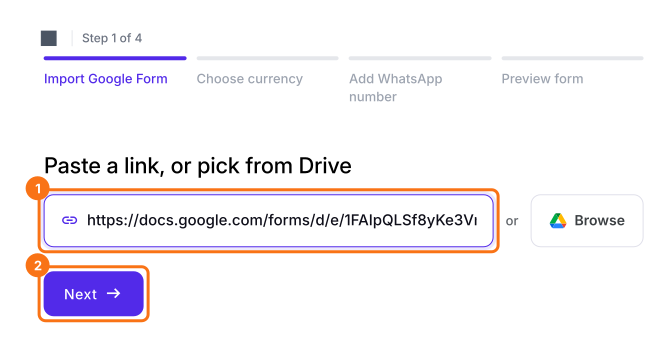
On the page that opens, paste your Google Form's link or click Browse to pick it, then click Next. Under Select currency, pick your currency from the list and click Next. Under "Your users' responses will be sent to:", pick your country, type your WhatsApp number and click Next. When it says "Your WhatsApp form is ready!", Neartail has made a product from each question with a price and added an order total and summary. Click Preview your form. Your form opens in a new browser tab. Back on this page, click Edit form under MANAGE. The form builder opens in another browser tab.
Step 1 of 4 of the WhatsApp form wizard, Import Google Form, with a Google Form's link pasted in and the link box and the Next button marked

2. Send orders to your WhatsApp

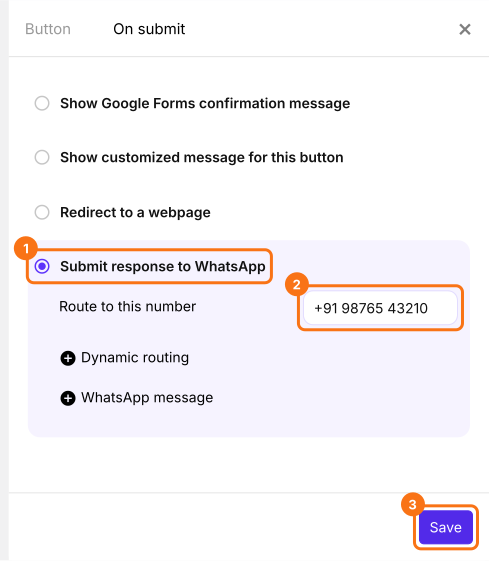
Your form already sends orders to the WhatsApp number you typed in the import. To change it, at the end of the EDIT tab, click the gear on the last After row, above Submit. Open On submit, where Submit response to WhatsApp is already selected, type your new number under Route to this number and click Save.
The On submit settings with Submit response to WhatsApp selected, +91 98765 43210 under Route to this number and the Save button marked

3. The order comes to your chat

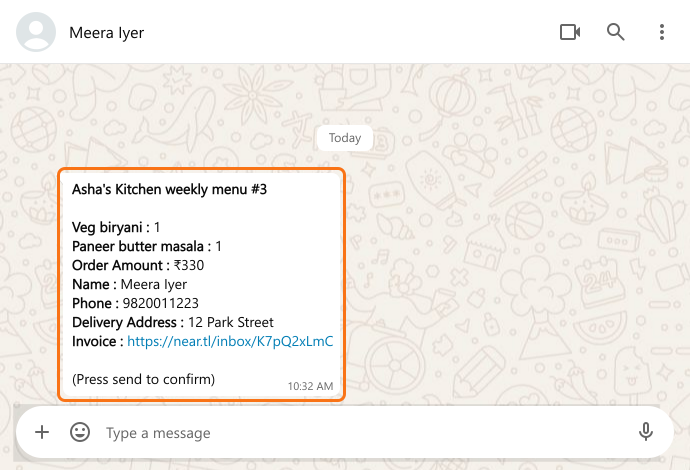
When a customer submits your form on a computer, they scan a QR code or click the link below it. WhatsApp opens with their order written out. They press send and it reaches your chat with the total.
A WhatsApp chat with Meera Iyer, whose order lists Veg biryani, Paneer butter masala and an Order Amount of ₹330

4. Reply with your UPI ID

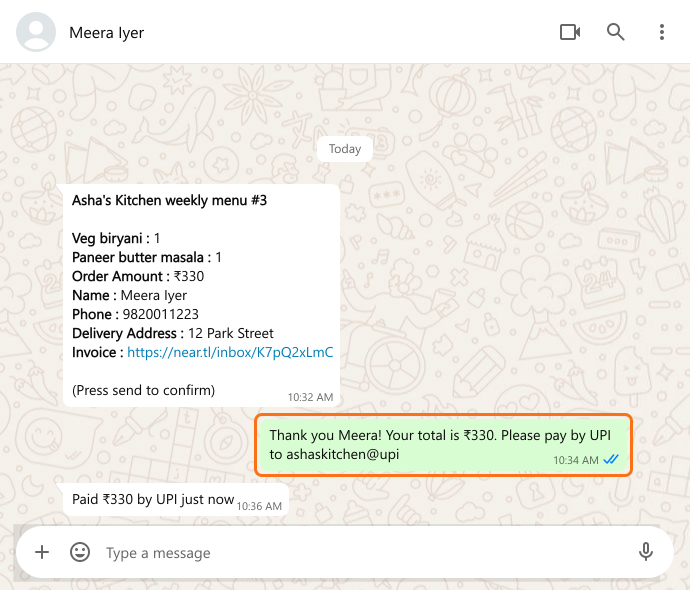
Reply with your UPI ID and the amount. The customer pays from their UPI app and tells you in the same chat.
The same chat, with your reply asking for ₹330 by UPI marked and Meera's message saying she has paid

5. Keep track of who paid

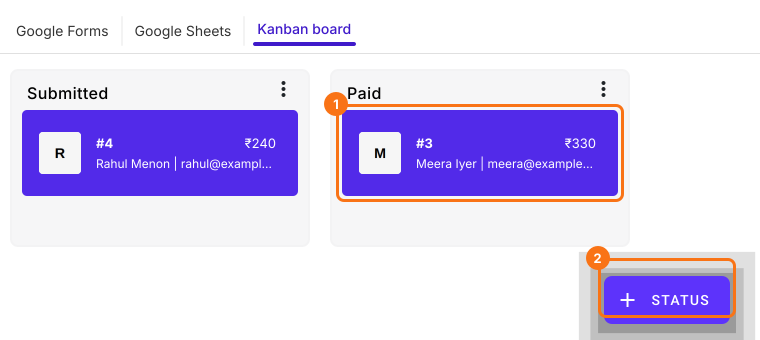
On the Kanban board in your ORDERS tab, click + STATUS and add Paid. Check the money in your UPI app, then drag the order to Paid.
The Kanban board with Meera Iyer's order for ₹330 in the Paid column marked and the Status button marked

Summary

A payment gateway charges on every sale, and a plain Google Form can't add up an order so you know what to ask for. With Neartail, each order arrives in your WhatsApp with its total, you reply with your UPI ID and you mark the order paid on your Kanban board. Import your Google Form and complete the steps above. If you have any questions, write to support.

Get each order and its total on WhatsApp. Ask for payment there.

Import your Google Form and send its orders to WhatsApp. Each arrives with its total and you reply with your UPI ID or other payment details.

Last updated: